
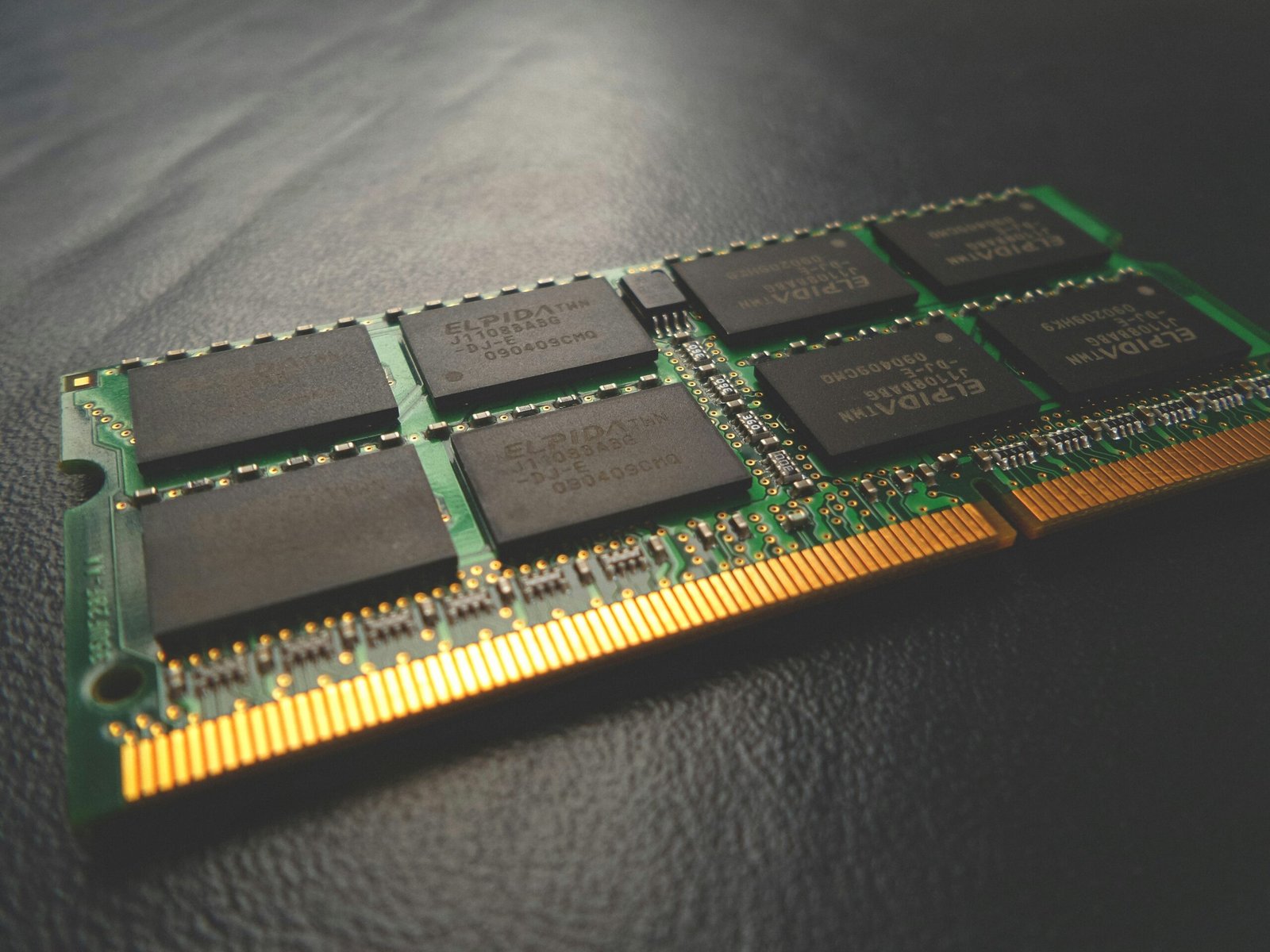
You’ve decided it’s time for an upgrade. Your trusty laptop, once a lightning-fast companion, is starting to feel sluggish. Applications take forever to open, multitasking is a painful experience, and you’re pretty sure your computer has started to consider sleep a feature, not a bug. The most common culprit? Often, it’s your RAM. You’ve heard that adding more RAM can breathe new life into a machine, and you’re ready to take the plunge. But navigating the world of RAM – DDR4, DDR5, SODIMM, speeds, timings – can feel like deciphering an alien language. You want to make the best buy, but the sheer volume of information and the potential for costly mistakes are daunting. This listicle is your guide to understanding the “best buy laptop RAM issue,” ensuring you invest wisely and avoid common pitfalls. We’ll demystify the jargon, pinpoint the key considerations, and empower you to make an informed decision that will actually improve your laptop’s performance.
Before you even think about hitting “add to cart,” you need a clear picture of what your laptop currently has. This isn’t just about knowing whether you have 8GB or 16GB; it’s about understanding the specifics that dictate compatibility and performance. Think of it like trying to buy a replacement part for your car – you wouldn’t just grab any old filter, would you? You need the exact make, model, and year to ensure a perfect fit.
What Type of RAM is Currently Installed?
This is the most critical question. Your laptop doesn’t just accept any RAM; it’s designed for specific generations.
DDR3 vs. DDR4 vs. DDR5: The Generational Divide
- DDR3: Older laptops (generally pre-2015) will likely use DDR3. These modules are physically different from newer generations and cannot be interchanged. They are also significantly slower. If your laptop has DDR3, upgrading to a newer DDR generation is impossible without replacing the entire motherboard, which is usually not cost-effective.
- DDR4: This has been the standard for many years and is found in a vast number of laptops released between roughly 2015 and 2021. DDR4 offers a significant performance leap over DDR3.
- DDR5: The latest generation, DDR5, is becoming increasingly common in newer laptops (released from late 2021 onwards). It boasts higher speeds, improved power efficiency, and other architectural advancements.
How to Find Out:
- Task Manager (Windows): Press
Ctrl + Shift + Escto open Task Manager. Go to the “Performance” tab, then select “Memory.” You should see the RAM type listed (e.g., “Speed: 3200 MHz,” and often the DDR generation is implied or stated). - System Information (Windows): Search for “System Information” in the Windows search bar. Look for “Installed Physical Memory (RAM)” and the “System Model.” You can then search online for your specific system model and “RAM type” to confirm.
- System Report (macOS): Click the Apple menu, then “About This Mac.” Click “System Report.” Under “Hardware,” select “Memory.” This will detail your RAM type, speed, and module configuration.
- Third-Party Software: Tools like CPU-Z (for Windows) provide very detailed information about your current RAM modules, including the DDR generation, speed, and timings.
How Much RAM Do You Have, and How is It Configured?
Knowing the total capacity is important, but so is understanding how it’s distributed.
Single-Channel vs. Dual-Channel Memory
- Single-Channel: When your RAM is installed in a single module or the motherboard isn’t set up to utilize multiple modules simultaneously for increased bandwidth. This is the slowest configuration.
- Dual-Channel: Most modern laptops have at least two RAM slots (or a soldered configuration that acts like two channels). When you install identical RAM modules in the correct slots, they can work together in dual-channel mode, effectively doubling the memory bandwidth. This leads to a noticeable performance improvement, especially in tasks that are memory-intensive.
How to Find Out:
- Task Manager (Windows): In the “Performance” tab, select “Memory.” Look for “Slots used” and “Speed.” If you see a significant difference in reported memory bandwidth when comparing to online benchmarks for your RAM speed, it might be single-channel.
- CPU-Z (Windows): The “Memory” tab in CPU-Z clearly states “Channel #” (e.g., “Single,” “Dual,” “Triple,” “Quad”).
- System Information (Windows): While not always explicit, if your “Installed Physical Memory” is made up of two identical modules, it’s highly likely to be running in dual-channel.
Are Your RAM Slots Accessible?
This is a crucial practical consideration. Not all laptops are created equal when it comes to upgrades.
Soldered RAM vs. Accessible Slots
- Soldered RAM: Many ultra-thin laptops and some mainstream models have RAM chips directly soldered onto the motherboard. This means you cannot upgrade or replace the RAM. If your RAM is soldered, you’re stuck with what you have unless you buy a new laptop.
- Accessible Slots: Most gaming laptops, business laptops, and older/thicker general-purpose laptops will have one or two accessible SODIMM (Small Outline Dual In-line Memory Module) slots. These are the small sticks of RAM you’ll be buying.
How to Find Out:
- Check Your Laptop’s Specifications: The easiest way is to search online for your specific laptop model number and look for its technical specifications. Look for sections on “Memory” or “Upgradability.”
- Consult Your Laptop’s Manual: If you still have it, the user manual will detail upgrade options.
- Watch Teardown Videos: Search YouTube for “[Your Laptop Model] RAM Upgrade” or “[Your Laptop Model] Teardown.” Seeing someone else open it up will quickly reveal if RAM slots are present.
2. Demystifying RAM Specifications for the Best Buy
Now that you understand your current setup, it’s time to dive into the nitty-gritty of RAM specifications. This is where many people get lost, but getting this right is paramount to ensuring your new RAM actually works and provides the expected performance boost.
RAM Speed: How Fast Can Your Data Travel?
RAM speed is measured in megahertz (MHz). A higher number generally means faster data transfer.
Common RAM Speeds for DDR4 and DDR5
- DDR4: Common speeds include 2133MHz, 2400MHz, 2666MHz, 3000MHz, 3200MHz.
- DDR5: Common speeds include 4800MHz, 5200MHz, 5600MHz, 6000MHz, and higher.
The Golden Rule: Match Your Motherboard’s Capability
- You cannot simply buy the fastest RAM available and expect it to run at that speed. Your laptop’s motherboard (and the CPU) has a maximum supported RAM speed.
- If you install RAM faster than your motherboard supports, it will either:
- Run at the motherboard’s maximum supported speed (often lower than advertised).
- Not boot at all.
- Best Buy Tip: Always aim for RAM that matches or is slightly above your laptop’s officially supported maximum RAM speed. If your laptop officially supports up to 3200MHz DDR4, buying 3200MHz is ideal. Buying 3600MHz might work if your motherboard has some headroom, but it’s a gamble.
How to Find Out Your Supported Speed:
- Laptop Manufacturer’s Website: This is your primary source. Search for your specific model number and look for technical specifications or the memory support list.
- Crucial System Scanner / Kingston Memory Finder: These websites offer tools that scan your system and recommend compatible RAM, often including supported speeds.
- CPU Specifications: Intel and AMD websites provide specs for their processors, including supported memory types and speeds. Your laptop’s CPU is a major factor in this.
RAM Timings (Latency): The Delay Factor
Timings, often represented by a series of numbers like “CL16-18-18-36,” indicate the latency – the number of clock cycles it takes for the RAM to respond to a request. Lower numbers are better, meaning less delay.
Understanding CAS Latency (CL)
- CAS Latency (CL): This is the most important timing figure. It’s the delay between the memory controller telling the RAM module to access a specific column on the memory bank and the data being available.
- Example: DDR4-3200 CL16 is generally considered faster than DDR4-3200 CL18 because CL16 has fewer clock cycles of delay.
The Interplay Between Speed and Timings:
- It’s not always a simple case of “faster speed is always better.” Sometimes, slightly slower RAM with much tighter timings can perform comparably or even better than faster RAM with loose timings.
- Best Buy Tip: For the average user, prioritize getting the correct DDR generation and speed that your laptop supports. Then, if you have a choice between two identical speed kits, opt for the one with lower CAS latency. However, don’t overspend significantly on slightly tighter timings if it means compromising on speed or compatibility.
RAM Capacity: How Much Data Can It Hold?
This refers to the total amount of RAM in gigabytes (GB).
Common RAM Capacities and Your Needs
- 4GB: Extremely limited, only suitable for very basic web browsing and light document editing. Most modern operating systems and applications struggle with this.
- 8GB: The bare minimum for comfortable general use (web browsing, office applications, casual multitasking). If you’re on a tight budget, this can be a step up, but you’ll still hit limitations.
- 16GB: The sweet spot for most users. This allows for smooth multitasking, running most applications without issue, and light to moderate gaming or creative work. This is often the ideal upgrade target.
- 32GB+: Essential for demanding professional workloads like video editing, 3D rendering, virtual machines, heavy coding, and serious gaming.
Best Buy Tip: Aim for 16GB if your budget allows and your laptop supports it. It provides the most significant performance improvement for the cost for the vast majority of users. If you’re a power user, then 32GB is your goal.
RAM Form Factor: SODIMM is Key for Laptops
This refers to the physical size and connector type of the RAM module.
SODIMM vs. DIMM
- DIMM (Dual In-line Memory Module): These are the larger RAM modules found in desktop computers.
- SODIMM (Small Outline Dual In-line Memory Module): These are significantly smaller and designed for laptops and compact computers.
Best Buy Tip: You must buy SODIMM modules for your laptop. Buying DIMMs will be physically impossible to install. Ensure you are buying “SODIMM” RAM.
3. Identifying the “Best Buy” RAM Modules: Brands and Kits

With the technical specifications in mind, you’re ready to look at actual products. Not all RAM is created equal, and some brands and configurations offer better value or reliability.
Reputable RAM Brands to Consider
While many brands offer RAM, some have a stronger reputation for quality, reliability, and customer support.
Top-Tier Brands
- Crucial: A very popular and reliable choice. Often recommended for its compatibility and ease of use. They have excellent tools for identifying the right RAM for your system.
- Kingston: Another industry leader, known for its durability and wide range of products. Their “HyperX” line (though now rebranded) was particularly popular.
- Corsair: A well-regarded brand, especially for gaming and performance enthusiasts. They offer a variety of speeds and aesthetics.
- G.Skill: Also a favorite among PC builders and gamers, known for high-performance memory.
Other Solid Options
- SK Hynix: A major manufacturer of memory chips themselves, their branded RAM is also of good quality.
- Samsung: Another top-tier memory manufacturer whose branded modules are reliable.
Best Buy Tip: Stick with well-known, reputable brands. While generic or unbranded RAM might be cheaper, the risk of encountering compatibility issues, lower quality components, or poor performance is significantly higher. Crucial and Kingston are often excellent starting points due to their extensive compatibility checkers.
The Advantage of Buying RAM Kits
RAM is often sold in kits of two modules, designed to work together.
Matched Pairs for Optimal Performance
- Dual-Channel Optimization: RAM kits are tested to ensure both modules work perfectly together in dual-channel mode at their advertised speeds and timings. This guarantees that you’ll achieve the expected performance uplift.
- Simplified Compatibility: Buying a kit removes the guesswork of trying to match two individual modules. You know they are designed to be a pair.
Best Buy Tip: Whenever possible, buy your RAM as a kit (e.g., 2x8GB for 16GB total, or 2x16GB for 32GB total). This is especially important if you’re upgrading from a single RAM module or if your laptop only has two slots and you want to maximize performance. If you already have a single stick of RAM and want to upgrade, you can sometimes buy a second, identical stick, but finding an exact match can be tricky, and buying a new kit and discarding your old stick is often simpler and more reliable for achieving dual-channel.
Considering Speed vs. Timings for Value
As mentioned, there’s a balance between speed and latency.
Finding the Sweet Spot for Your Budget
- For most users: Prioritize getting the correct DDR generation and the highest speed officially supported by your laptop. Then, look for good timings within that speed.
- For enthusiasts/gamers: If you’re pushing performance, the difference between a CL16 and CL18 module at the same speed might be worth a small premium, but don’t break the bank for a marginal gain.
- Best Buy Tip: Compare prices for RAM modules that meet your required DDR generation, speed, and capacity. Look at the CAS latency (CL) and choose the kit with the lowest CL number for the best performance within your budget. However, the correct compatibility and supported speed are always the absolute highest priority.
4. Navigating Compatibility Issues and Avoiding Pitfalls

This is where many people encounter trouble. Buying the wrong RAM isn’t just a waste of money; it can prevent your laptop from booting entirely.
The Dreaded “Incompatibility” Scenario
You’ve received your shiny new RAM, installed it, and… nothing. Black screen. The laptop powers on, but it doesn’t POST (Power-On Self-Test). This is the most common and frustrating outcome of RAM incompatibility.
Why Does Incompatibility Happen?
- Wrong DDR Generation: Trying to put DDR4 into a DDR3 slot (or vice versa). The physical notches on the modules are different, preventing installation, but sometimes users force it.
- Unsupported Speed: Installing RAM faster than the motherboard or CPU can handle.
- Maximum Capacity Exceeded: Installing more RAM per slot or total RAM than your motherboard supports. Many laptops have limits on the maximum GB per SODIMM slot and total system RAM.
- Voltage Mismatch: Less common with modern DDR generations, but older systems could be sensitive to RAM voltage.
- BIOS/UEFI Issues: In rare cases, older BIOS versions might not recognize newer RAM modules, even if they are technically compatible.
How to Prevent Incompatibility:
- Triple-Check Your Laptop’s Specifications: This cannot be stressed enough. Use the methods outlined in Section 1.
- Use Manufacturer Compatibility Tools: Websites like Crucial.com and Kingston.com have excellent “Memory Finder” tools. You enter your laptop’s make and model, and they will show you exactly which RAM modules are guaranteed to work. This is your safest bet.
- Consult Your Laptop’s Manual or Manufacturer Support: If in doubt, contact the manufacturer directly.
Best Buy Tip: Prioritize purchasing RAM that is explicitly listed as compatible with your specific laptop model by a reputable manufacturer’s tool. This might mean slightly less choice, but it dramatically reduces the risk of a costly mistake.
The Maximum RAM Limit: Don’t Over-Spec
Laptops, especially older or more budget-oriented ones, often have a maximum amount of RAM they can officially support.
Understanding System and Slot Limits
- System Limit: The total amount of RAM the motherboard and chipset can address. For example, a laptop might have a system limit of 16GB.
- Slot Limit: The maximum amount of RAM that can be installed in a single slot. For example, a laptop might have two slots, each supporting up to 8GB, for a total of 16GB. Or, one slot might support 16GB while the other supports 32GB, allowing for 48GB total if the system limit is high enough.
Why This Matters:
- If you install more RAM than your laptop supports, it simply won’t recognize it. You might have bought 64GB, but your system will only show 16GB if that’s its limit.
- This is a common pitfall when upgrading. People see large RAM modules and assume they’ll work, without checking the laptop’s limitations.
How to Find Your Max RAM Limit:
- Laptop Manufacturer’s Website: This is the definitive source. Look for “maximum RAM” or “memory support” in the specifications.
- Crucial/Kingston Memory Finder: These tools will also tell you the maximum RAM supported for your model.
- Third-Party Laptop Review Sites: Often, detailed reviews will mention the maximum RAM capacity.
Best Buy Tip: Always confirm the maximum RAM capacity your laptop supports before purchasing. It’s a waste of money to buy more RAM than your system can utilize.
Dealing with Different RAM Voltages and Timings from Existing RAM
If you’re upgrading an existing setup (adding a second stick), you need to consider your current RAM.
The “Match or Be Compatible” Rule
- DDR Generation: Must be the same. You cannot mix DDR3 and DDR4.
- Speed: It’s best to match speeds. If you can’t, the system will usually run both modules at the speed of the slower module. So, if you have 2666MHz RAM and buy 3200MHz, both will likely run at 2666MHz.
- Timings: Ideally, match timings too. If they don’t match, the system will usually default to the looser (higher latency) timings of one of the modules.
- Voltage: Typically, modern DDR4 and DDR5 modules operate at standard voltages, so this is less of an issue than in the past, but still worth noting if you have very old or specialized RAM.
What to Do When Mixing RAM:
- If Upgrading to Dual-Channel: The best scenario is to buy a new kit of two identical modules that match your laptop’s supported speed and timings. This guarantees optimal performance.
- If Adding a Single Stick: Try to find an exact match for your existing RAM (brand, speed, timings, and capacity). If an exact match is unavailable, get a stick with the same DDR generation and speed, and accept that it might run at the looser timings of the existing or new module.
- Best Buy Tip: For maximum performance and reliability, always opt for a matched kit of RAM. If you must add to existing RAM, prioritize matching speed and DDR generation. If performance is critical, consider replacing your existing RAM with a new, matched kit.
5. The Installation Process and Final Checks
| Issue | Frequency | Resolution |
|---|---|---|
| Best Buy Laptop RAM Issue | High | Replacement of faulty RAM modules |
You’ve bought the right RAM. Now, it’s time to get it into your laptop. While this guide focuses on the buying aspect, a brief overview of installation and verification can prevent post-purchase anxiety.
How to Install Laptop RAM (A Quick Overview)
The exact process varies significantly between laptop models, but the general steps are similar.
Safety First!
- Power Off and Unplug: Ensure your laptop is completely shut down and disconnected from the power adapter.
- Remove Battery (if possible): Some laptops have easily removable batteries. If yours does, take it out to prevent accidental power surges.
- Ground Yourself: Static electricity can damage components. Touch a grounded metal object (like the metal case of a plugged-in but turned-off desktop PC, or a metal radiator) before handling the RAM. You can also use an anti-static wrist strap.
Accessing the RAM Slots
- Check Your Manual/Online Videos: This is crucial. Some laptops have a dedicated small panel on the bottom for RAM access, while others require removing the entire bottom cover.
- Unscrew and Gently Pry: Use the correct size screwdriver. Be patient and careful when prying open plastic panels to avoid breaking clips.
Inserting the SODIMM Module
- Locate the Slots: You’ll see small rectangular slots with clips on either side.
- Angle and Push: Insert the SODIMM module at an angle (usually around 30-45 degrees) into the slot. The notch on the module must align with the notch in the slot.
- Gently Press Down: Once inserted, gently push the module down until the side clips snap into place, holding it flat.
Best Buy Tip: If you’re not comfortable with disassembling your laptop, consider paying a local computer shop or IT professional to perform the installation. The cost is usually minimal compared to the potential for damage if done incorrectly.
Verifying the Upgrade in Your Operating System
After installation, you need to confirm that your system recognizes the new RAM.
Checking the Installed Memory
- Windows:
- Task Manager:
Ctrl + Shift + Esc-> Performance -> Memory. Verify the total amount of RAM shown. - System Information: Search “System Information.” Look for “Installed Physical Memory (RAM).”
- macOS:
- Apple Menu -> About This Mac -> System Report -> Memory. Verify the total amount of RAM.
What If the Amount is Incorrect?
- Reseat the RAM: The most common fix. Remove the modules and reinsert them, ensuring they are fully seated and the clips are engaged.
- Check BIOS/UEFI: Restart your laptop and enter the BIOS/UEFI setup (usually by pressing F2, F10, F12, or DEL during boot). It should display the total installed RAM. If it’s incorrect here, there’s a fundamental hardware issue.
- Test One Module at a Time: If you installed two modules, try booting with only one installed to see if one of them is faulty.
- Consult Manufacturer Support: If the RAM is still not recognized after these steps, it may be faulty or incompatible despite your best efforts.
Best Buy Tip: After installation, perform these checks immediately. This allows you to initiate a return or exchange if the RAM is faulty or incompatible before the return window closes.
Performance Benchmarking (Optional but Recommended)
To truly see the impact of your upgrade, consider running some simple benchmarks.
Measuring the Improvement
- Synthetic Benchmarks: Tools like PassMark, AIDA64, or even the built-in Windows Experience Index (though less relevant on newer Windows versions) can give you numbers to compare.
- Real-World Testing: Observe application load times, multitasking responsiveness, and frame rates in games. These qualitative improvements are often more significant than synthetic scores for everyday users.
Best Buy Tip: While not strictly a “buy” issue, seeing a tangible performance improvement reinforces that you made a good purchase and confirms the RAM is working optimally.
By following these steps and understanding the nuances of the “best buy laptop RAM issue,” you can confidently navigate the market, make an informed purchase, and significantly enhance your laptop’s performance without breaking the bank or succumbing to common compatibility headaches. Your once-sluggish machine will thank you for it.
FAQs
What are the common issues with laptop RAM at Best Buy?
Some common issues with laptop RAM at Best Buy include compatibility issues with the laptop, incorrect installation, and faulty RAM modules.
How can I determine if my laptop RAM is causing performance issues?
You can determine if your laptop RAM is causing performance issues by checking the Task Manager for high memory usage, experiencing frequent crashes or freezes, and running a diagnostic tool to test the RAM.
What should I do if I encounter a RAM issue with my laptop purchased from Best Buy?
If you encounter a RAM issue with your laptop purchased from Best Buy, you should contact their customer support for assistance. They may offer troubleshooting steps, a replacement, or a refund depending on the situation.
Can I upgrade the RAM in my laptop purchased from Best Buy?
In most cases, you can upgrade the RAM in your laptop purchased from Best Buy. However, it’s important to check the compatibility of the new RAM modules with your laptop before making a purchase.
What are some tips for buying laptop RAM at Best Buy to avoid issues?
Some tips for buying laptop RAM at Best Buy to avoid issues include checking the compatibility with your laptop model, ensuring the correct specifications (such as speed and capacity), and considering reputable brands for reliability.